Overview
Running tcli with no arguments launches the full-screen terminal UI.
tcliScreens
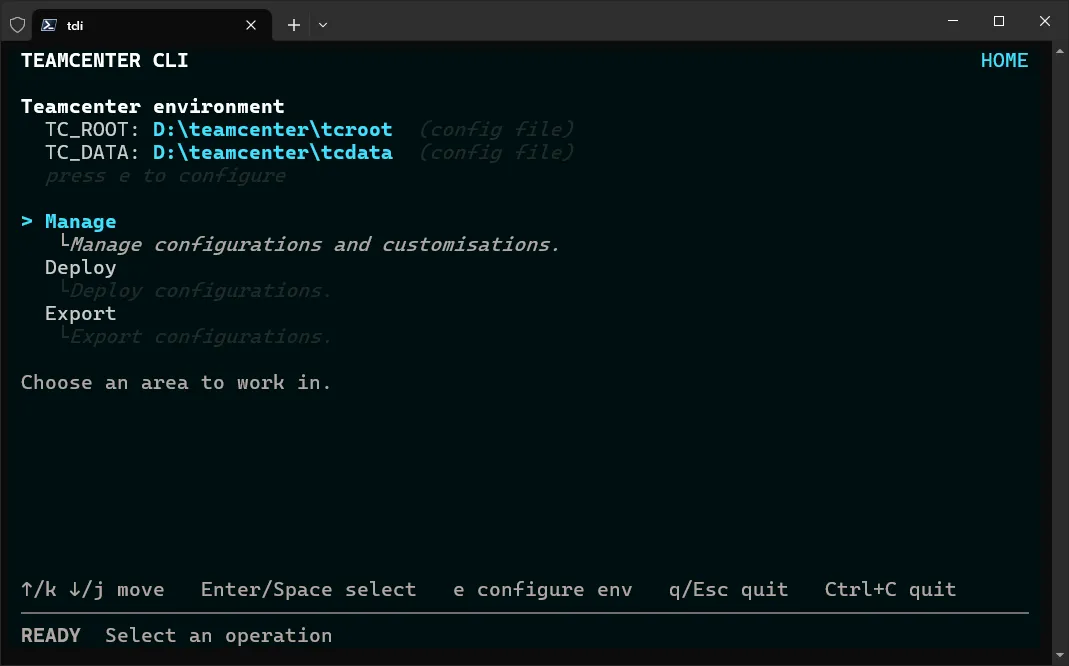
Section titled “Screens”Shows the resolved Teamcenter environment (TC_ROOT, TC_DATA,
UPG) and their source, and lets you configure them in place. From Home you
navigate into Manage, Deploy, and Export.
Manage
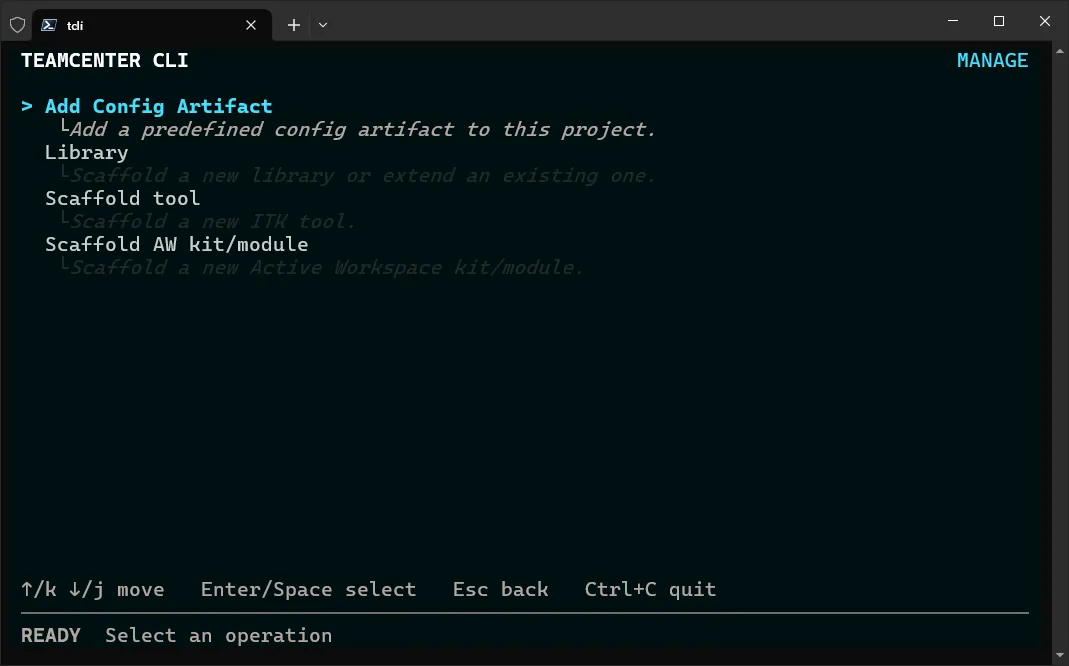
Section titled “Manage”Scaffold libraries, tools, extensions, and Active Workspace kits/modules.
Deploy
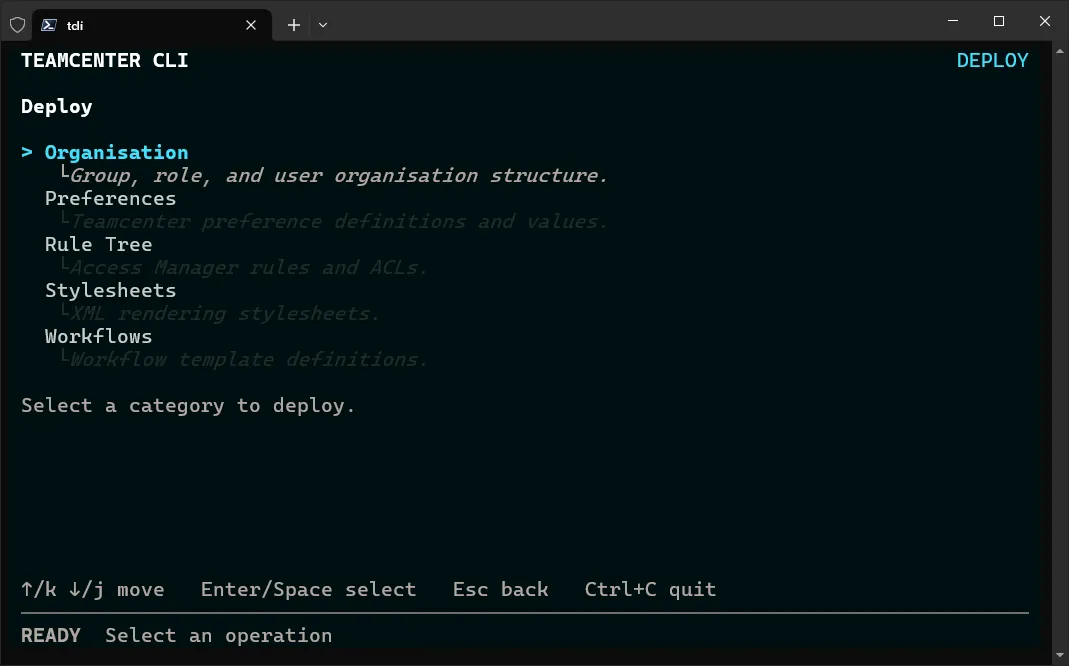
Section titled “Deploy”Deploy a configuration artifact type.
Export
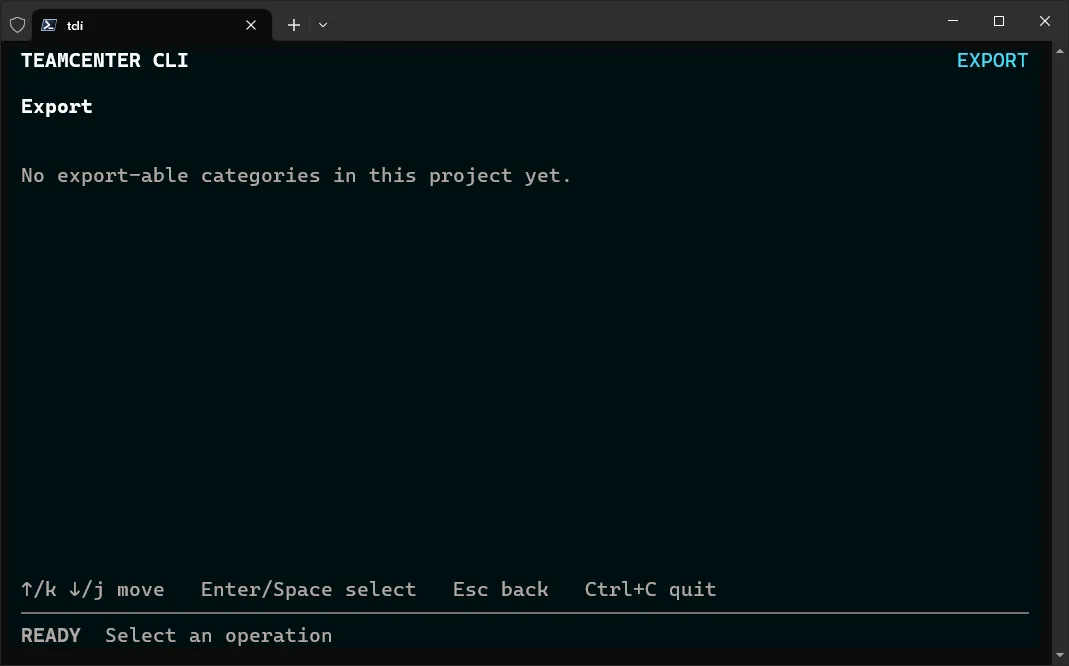
Section titled “Export”Export a configuration artifact type.
Navigation
Section titled “Navigation”| Key | Action |
|---|---|
↑ / k |
Move up |
↓ / j |
Move down |
Enter / Space |
Select |
Esc |
Go back one step (quits from Home) |
Ctrl+X |
Cancel a running operation (on a command screen) |
Ctrl+C |
Quit from anywhere |
Editing the environment
Section titled “Editing the environment”On the Home screen, the edit action writes resolved values to the
per-machine .tcli.env.yaml file. Unlike headless mode, the TUI may prompt
for an unresolved value and persist your answer. See
Environment resolution.